
The layout
The layout
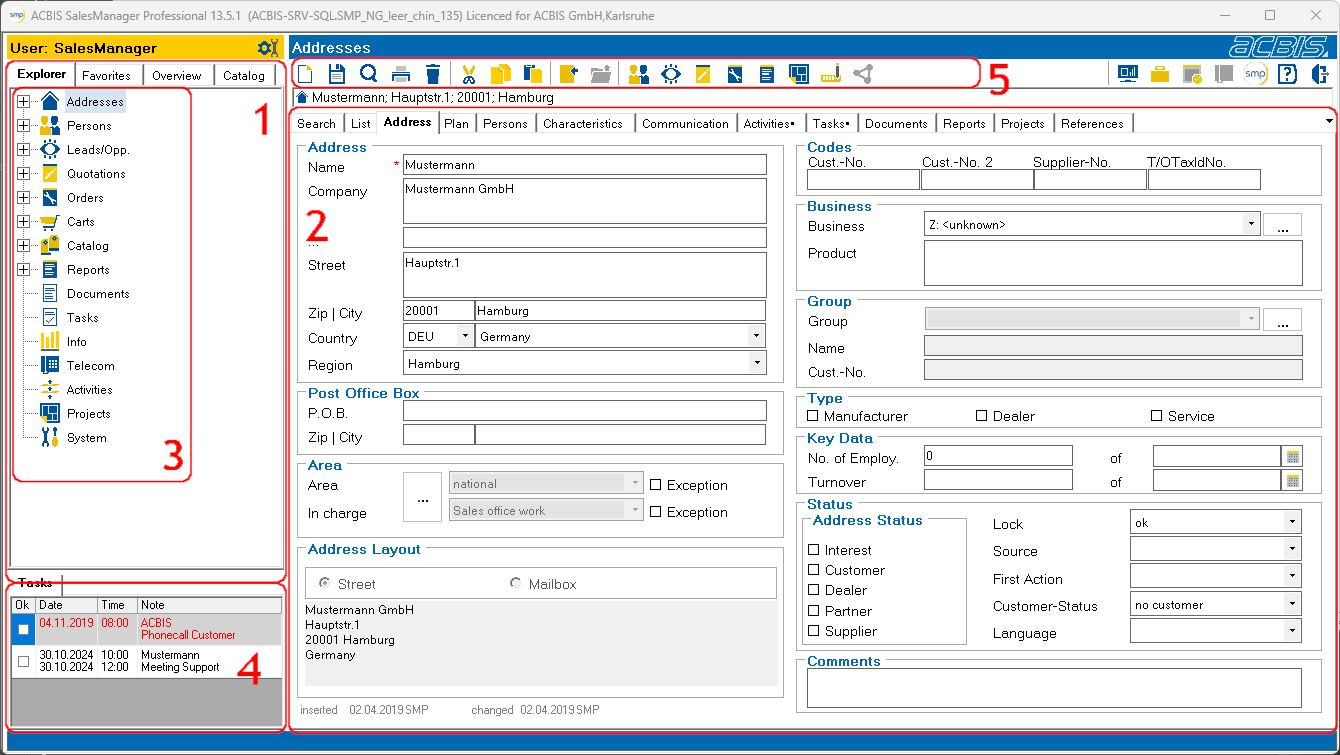
The navigation menu (1) with Explorer, Favorites, Overview and Catalogue is located on the left-hand side of the SalesManager. Here you have the option of selecting your work area from the various folders. In addition, an adjustable number of current entries is automatically stored in the Explorer for each folder. Double-click on such an object to open it. Your favorite objects are displayed in the Favorites area. The currently edited object can be dragged and dropped into the favorites. This object is also opened by double-clicking on it. The Overview provides a general overview of the objects at the current address and the Catalog contains the items in the product catalog.
On the right-hand side you will find the editing window (2) for the selected folder (3) or object and under Tasks (4) you have an overview of your currently pending tasks and appointments. When using the Outlook interface, the content of the Outlook inbox is displayed in a second tab. From version 13.3 it is also possible to display your own company logo below or instead of the tasks. Above the editing window you will find the title bar and above it the toolbar (5). The width of the navigation menu and the tasks can be changed by moving the dividing line between the areas. The vertical division between the navigation menu and the tasks can also be changed. The dividing line can be recognized by the change in the mouse pointer when it is moved over the line. When the system is closed, this setting is saved and applied again the next time the system is started. To switch back to the default settings, simply double-click on the title bar.
See also: