
Tasks
Tasks
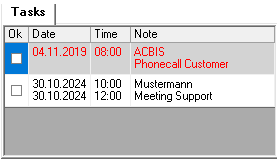
The tasks of the logged-in user are displayed in this window. Overdue tasks are highlighted in red. Double-click on a task to open it. If the user has many open tasks, updating may take a few seconds. To prevent this, a maximum number of appointments to be displayed can be set in the parameters.
Press the right mouse button to open the context menu with the following entries:
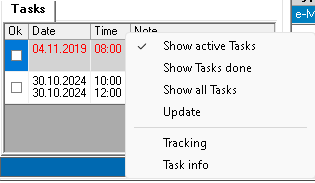
The individual entries adjust the filters of the displayed tasks. Follow-up displays all active tasks that the logged-in user has created for other users and marked for follow-up. Task info shows all active tasks for which the logged-in user has been entered in the Info on field.
By switching to the E-mail tab, the e-mails in the Inbox folder of your Outlook are displayed. Depending on the security settings in Office, you must grant access when switching to this tab in Outlook, otherwise SalesManager will not be able to read this information. If the Inbox folder in Outlook contains a large number of e-mails, it may take some time to display this list. This list can also be limited by an entry in Parameters.
Double-click on an e-mail to open it. Note: The emails are not copied to the SalesManager database, they remain in Outlook.