
Catalog tree structure
The items for transfer to a shopping cart list are displayed in a tree structure in the catalog. You can move the items to the desired position in the shopping cart by dragging them with the mouse. The item number is automatically adjusted. If the Shift key is pressed while dragging with the mouse, the item is positioned in front of the position in the shopping cart, otherwise below it.
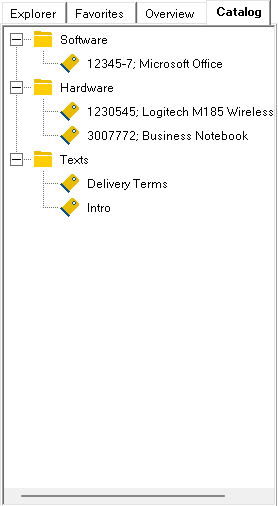
Edit mode allows you to edit the catalog structure.
Edit mode is indicated by a dark background. If you are in edit mode, you can obtain the following context menu by clicking the right mouse button:
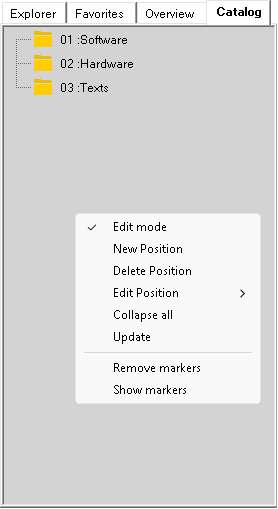
Edit mode: switch off the edit mode again
New position: insert a new position at the current position in the grouping tree
Delete position
Edit position: The name of the position can now be adapted for each system language defined in the system.
Collapse all: causes only the folders to be displayed.
Refresh
If automatic sorting by group number is deactivated in the TP parameter (default), the article groups can be re-sorted in edit mode using drag-and-drop. The group to be moved is inserted before the target node.
Once the group structure has been defined and the edit mode has been closed, the items in the product catalog can be assigned using drag & drop. After opening the item, its name in the title bar can be dragged to the desired position in the grouping tree. The group is entered in the Use tab of the article. In this tab, the assignment of the article to the grouping tree can be deleted again by deleting this line.
An article may be used more than once in the grouping tree.
By dragging the group into the Group field of an item, the classification of the item is entered. This information can be used to search for items in the shopping cart in the Catalog tab, for example.

When the items are dragged into the shopping baskets, the items are marked so that the user can better remember which items have already been used. The menu items exist to influence these markings: Show markings and Remove markings.
Show details:
If several similar items are entered within a group, the detail display can be used to show the most important information about the items.
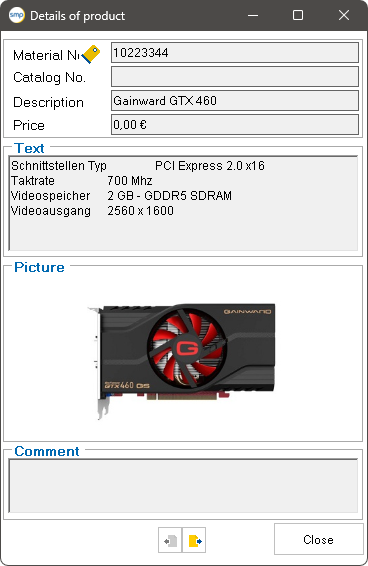
Use the arrow keys to navigate between the items in the group. Once the right item has been found, it can be dragged and dropped into the shopping cart to the desired position.
The shopping cart symbol at the bottom left of the window serves as an anchor for this process.