
Shopping cart-Positions
Shopping cart : Positions
Each shopping cart consists of a series of shopping cart items (sales items from the product catalog or outline items) that are arranged hierarchically.
This hierarchy can either be created automatically by the configurator (ePOS) or freely by the user by interactively upgrading or downgrading an item. Items can be moved within the tree structure using drag&drop. If an item is moved to a position, it is always inserted as the last item within the target structure. If the Shift key is pressed, the position is inserted before the selected target position.
Each shopping cart item has an item number that determines the order of the items within a hierarchy level. This sequence is calculated automatically and displayed immediately after the item data is saved.
Please note:
The order of the shopping cart items usually has an effect on the output documents to be generated, e.g. the quotation. To keep processing simple and clear, the order and hierarchy in the shopping cart should also be identical to the order of the offer items.
The shopping basket is also calculated via ePOS. A shopping cart may only be edited if the current user has the necessary rights. Otherwise it can only be read. All editing buttons and all input fields are then inactive.
An individual shopping cart item can contain a saleable item, a descriptive text (e.g. export regulations) or an outline of the underlying offer or order.
Even if a shopping cart item refers to an item in the product catalog, the data within an existing shopping cart item is available as a copy. This means that they can be freely modified. On the other hand, the product catalog can also be updated as required without changing existing shopping baskets (offers / orders).
Each shopping cart item has an item number that determines the order of the items within a hierarchy level. This sequence is calculated automatically and displayed immediately after the item data is saved.
The items are typed according to 2 separate specifications:
after the level:
Structure |
Sales position |
Position content |
according to the type:
Price item |
Option (quotation only) |
Alternative (quotation only) |
Text: No level is assigned to the Text type |
The structure of the items can be changed using the following symbols:

Inserting a free position of the outline type

Inserting a free item of the price item type

Inserting a free item of the item content type

Insert a text position.

Delete the shopping cart item. If there are other items below the item, these are also deleted. However, deletion only takes place after a confirmed query to the user.

move the position up one level in the hierarchy. Another way of organizing the hierarchy is by dragging a position with the mouse. After dragging and releasing, the position is always inserted below the position that was active when you released it.
The following context menu can also be opened using the right mouse button:
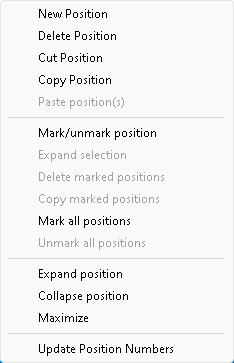
Please note: When copying, deleting and cutting items, the sub-items are always deleted or copied as well.
Marked items are displayed in a different text color and entered in the Errors tab with the message text: \Marked item\. Double-click on the line to open the item. Marking items is useful for quickly returning to the item in the shopping cart where processing was interrupted after breaks, phone calls or other interruptions.
Discounted items are automatically displayed in a different text color.
If an ePOS configuration is stored at a position, this is indicated by the additional marking in the icon.
If the error check is switched on, the system checks whether the structure of the elements is valid. If invalid structures are contained, this is entered in the Error sub-tab and also indicated by a changed icon at the position.
The following rule applies to a valid structure:
An outline may be located at the top of the structure or below an outline.
A sales item may be located at the top of the structure or below an outline.
A position content may only be below a sales position.
Text positions may be located anywhere in the structure.
Siehe auch:
Shopping cart : Positions : Position
Shopping cart : Positions : Characteristics
Shopping cart : Positions : Texts
Shopping cart : Positions : Documents
Shopping cart : Positions : Status