
Shopping cart
Shopping cart
A shopping cart contains all items of an offer or order. It therefore always has a reference to a contact or an order.
Each shopping cart consists of a series of shopping cart items (sales items from the product catalog or outline items) that are arranged hierarchically.
This hierarchy can be created either automatically by using templates, the configurator (ePOS) or freely by the user by interactively upgrading or downgrading an item.
Each shopping cart item has an item number that determines the order of the items within a hierarchy level. This sequence is calculated automatically and displayed immediately after the item data is saved.
The processing of a shopping cart is subdivided into the processing of the shopping cart and the processing of the items.
Please note:
The order of the shopping cart items usually has an effect on the output documents to be generated, e.g. the quotation. To keep processing simple and clear, the order and hierarchy in the shopping cart should also be identical to the order of the offer items.
A shopping cart may only be edited if the current user has the necessary rights and the status of the shopping cart allows this. If a shopping cart has been transferred to an ERP system, further editing of this shopping cart in SalesManager is normally no longer permitted. In these cases, the shopping cart can only be read. All editing windows and all input fields are then inactive.
The following toolbar is displayed in the Shopping cart tab if the positions sub-tab is active:

The following toolbar if the shopping cart sub-tab is active:


Create new shopping cart. With this function, the active shopping cart is duplicated and given a new version number.

Saving the data

Search for data records with the criteria entered in the Search tab

Generate printouts in the form of reports or ePOS print rule sets

Delete the shopping cart. This symbol is only active when the shopping cart sub-tab is open. In the search filter, clicking this button clears all fields.

Cut a selected text.

Copying a selected text

Paste a text from the clipboard

Go back to the last edited object.

Open the offer or order to which the shopping cart is assigned.

Updating the shopping cart. To do this, either SalesManager calculates the prices or an ePOS rule set is started, which revises the shopping cart items including discounting, changes to the item numbers, etc. An update is always recommended before a quotation or order confirmation is printed.

Starting an ePOS set of rules for editing the characteristics

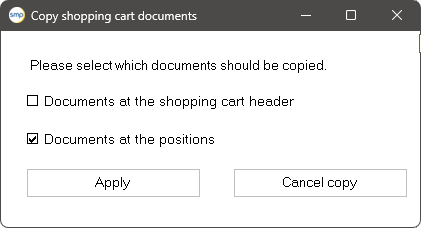
Create a new version of the shopping cart. The entire shopping cart is copied. The status of the copy is set to “in progress”. When copying, you can select in a pop-up whether documents at the header and/or at the items should also be copied.

Create an order from the quotation shopping cart.

Inserting a free position of the outline type

Inserting a free item of the price item type

Inserting a free position of type position content

Insert a text position.

Delete the shopping cart item. If there are other items below the item, these are also deleted. However, deletion only takes place after a confirmed query to the user.

move the position up one level in the hierarchy. Another way of organizing the hierarchy is by dragging a position with the mouse. After dragging and releasing, the position is always moved below the position that was active when it was released.

Expand all positions

Collapse all positions

Text comparison between shopping cart item and corresponding item in the product catalog. Further information can be found in the SalesManager developer manual.
These symbols are shown/hidden depending on the tab selected. In the Search and List tabs, all symbols relating to operations on a specific object are omitted.
Siehe auch: