
Projects-Tasks
Projekte : Aufgaben
All tasks that are assigned to the project itself are displayed in this tab.
Tasks are displayed in a table.
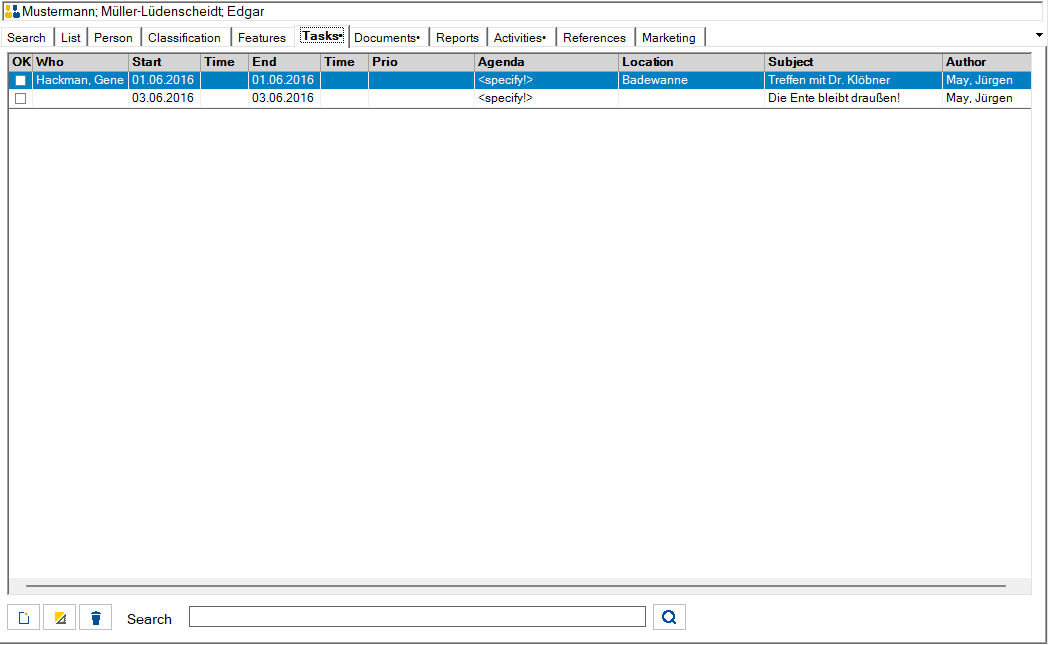
At the bottom of the form there are buttons to create a new entry, edit an entry, delete an entry and a search filter with the corresponding search button to filter entries in this list. The filter affects the following columns: What, Responsible, Subject, Comment, Location.
Meaning of the symbols:

Add new task

Edit selected task

Delete the selected task
Meaning of the symbol on the search button:

The term in the input line is searched for.

The input line is cleared.
Changing the search term switches back to search mode.
Dialog for processing a task:
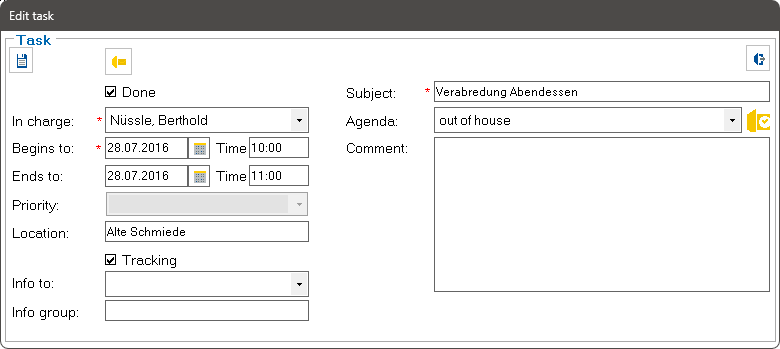

Save the task and close the dialog.

Enter this task in Outlook. Depending on the category, the entry is made as an appointment or task. If you have any questions about the categories, please contact the system administrator. This function is only available with the Outlook interface that requires a license.

Close dialog without saving.
Open tasks that are assigned to the logged-in user are automatically displayed in the Tasks area at the bottom left of the editing window and can be opened by double-clicking. Overdue tasks are displayed in red.
The tracking flag is used to display all tasks in the task list that were created by the logged-in user for other people and flagged for tracking.
The “Info to” selection box can be used to create a list of user abbreviations that are also shown these tasks if the corresponding selection has been made in the task area.