
Search
Search
Many folders contain a search filter with which you have quick access to all data and can search for any information. If desired, the background color of the search filters can be colored to better distinguish them from the entry dialogs. Enter your search term in the specific fields and activate the search by clicking on the toolbar symbol “Search “1 or by pressing “Enter” on the keyboard. If the search returns exactly 1 object, this is displayed in its editing window; if several objects are found, these are displayed in the list and offered for selection. If the search does not return any results, a message is displayed.

1Search
The following special entries are possible in the search filters
RETURN | Starts the search in the search filter |
F11 | Causes the search filters to only search for data records that do not have the value of the current field. |
F12 | Causes the search filters to only search for data records that have the value NULL in the current field |
! as 1st character in the field | Causes exactly this term to be searched for. By default, all entries that begin with the term entered are searched for. |
In the line between the toolbar and the tabs, there is a changeable selection field that can be used to save and reuse frequently used search filters.
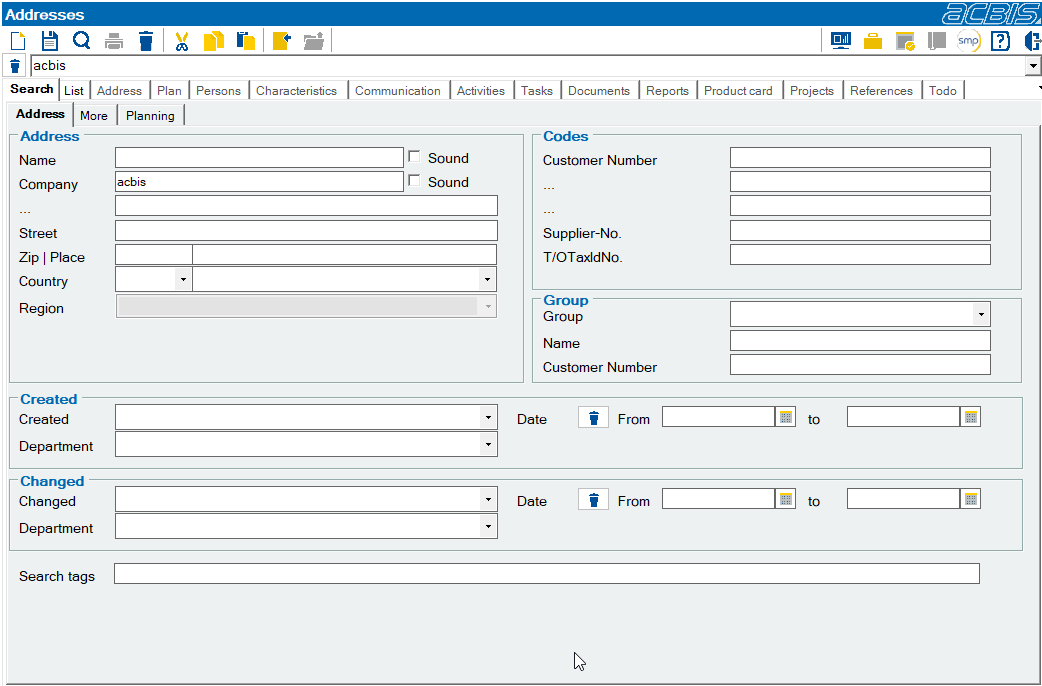
After filling in the search filter and entering a name, the filter can be saved using the “Save ”2 toolbar icon. The filters are saved for each individual user. If a filter is selected in the selection, it is loaded and the completed fields are entered. If a filter is to be deleted, it must be selected, then the content of the filter must be deleted using the “Delete”3 toolbar icon and then saved again. If “default” is specified as the filter name, this is automatically selected when the object is opened. If the user who saves a filter after a new creation or change has system rights, they will be asked whether this filter should be set up for all users. If the answer is yes, the filter is automatically created for every user. This also applies to the “default” filter. In this way, the administrator can, for example, ensure that only addresses that do not have a customer block are searched for when searching for addresses. If the user still wants to see these addresses, he must remove this entry in his filter form.
If a user wants to customize such a system filter for his purposes, he must save this filter under a new name.

2Save

3Delete