Dashboard
Dashboard
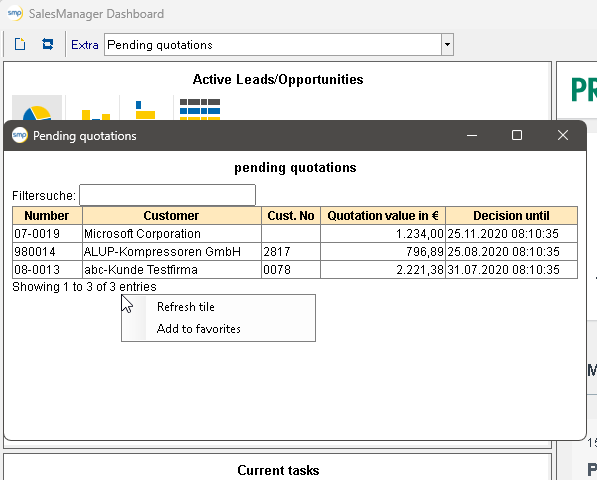
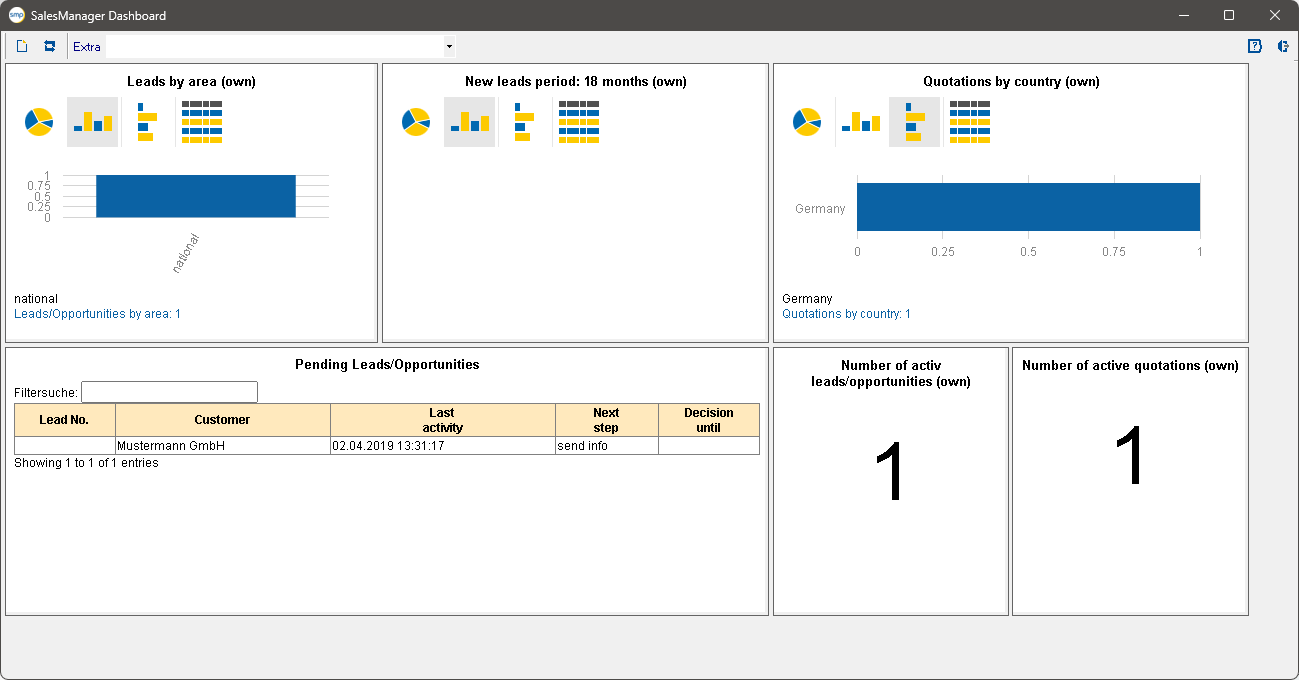
Different information can be displayed individually for each user in the dashboard. Up to 6 different tiles can be freely positioned. The tiles always contain HTML content. This content can either be any web pages, HTML pages created by an ePOS rule set or predefined SalesManager elements. The dashboard can be opened either automatically at system startup or with the “Open dashboard ”1 icon. The position and size are saved automatically.

1Open dashboard
Example of a dashboard
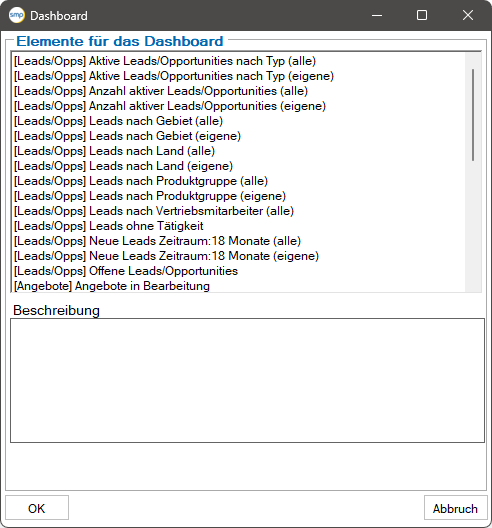
The elements of the predefined SalesManager lists can be opened by double-clicking. The selection of dashes offered can be restricted by entering a report group in the TP_DashObjects table. Only those dashes that belong to the same report group as the active user are then offered.
Click on the “Create a new tile ”2 button to open the dialog for selecting the desired element.

2Create a new tile
The “Refresh all tiles ”3 button updates all tiles.

3Update all tiles
The individual tile is controlled via a context menu, which is opened by right-clicking on the tile.
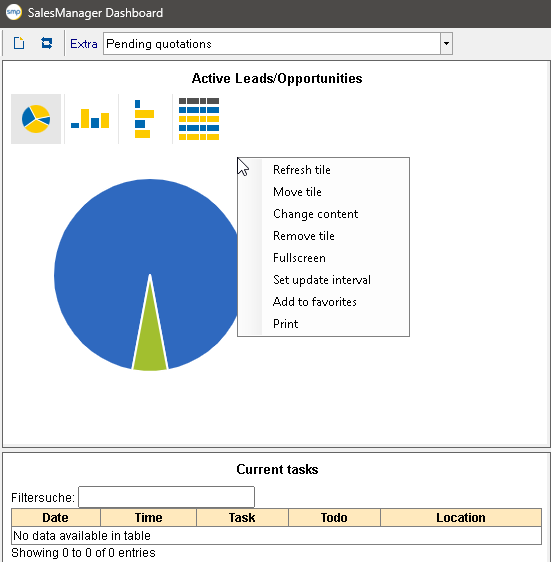
Refresh tile: The content of the tile is reloaded.
Move tile: A gripper4 appears with which the tile can be moved within the dashboard.

4Gripper
Change content: The current content of the tile is replaced by the content selected in the selection list.
Remove tile: The tile is deleted from the dashboard.
When inserting or after selecting the context menu item Move tile, a tile can be positioned interactively within the dashboard using the mouse. Two tiles must not overlap. If a tile is dragged over the top right quarter of another tile, the mouse pointer changes. If the tile is now set down, the two tiles involved swap their content. If a tile is placed close to the edge or another tile, it is aligned with it. When a page is moved, the adjacent tiles are also moved.
From version 12.0, any number of individual dashes can be opened via the “Extra” combo box. These are only defined for the current session. If these dashes are also to be displayed permanently, they can be saved as favorites via the context menu. Depending on the setting in the TP parameters, favorites are opened automatically when the SalesManager is started or via the “Favorites” combo box. In addition, favorites offer the option of defining a refresh interval for the respective dash via the context menu.