Addresses-Search
Addresses : Search
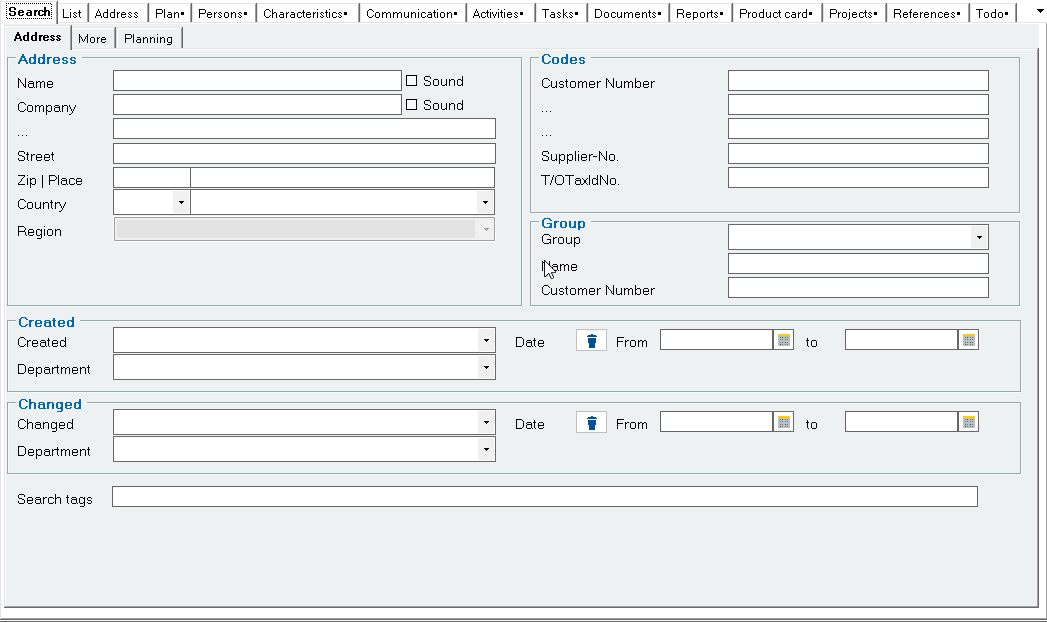
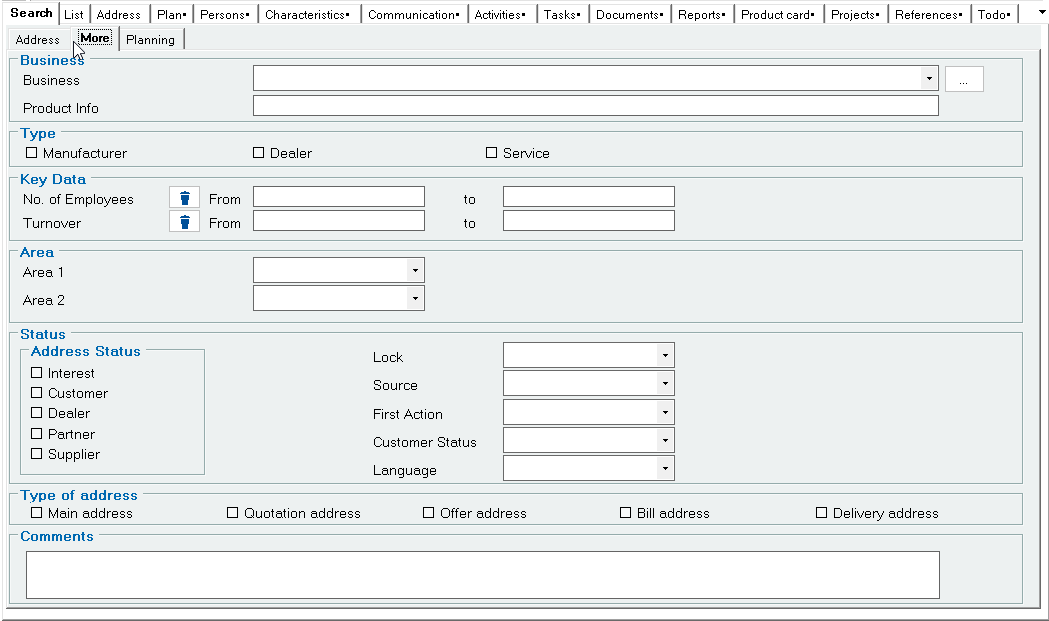
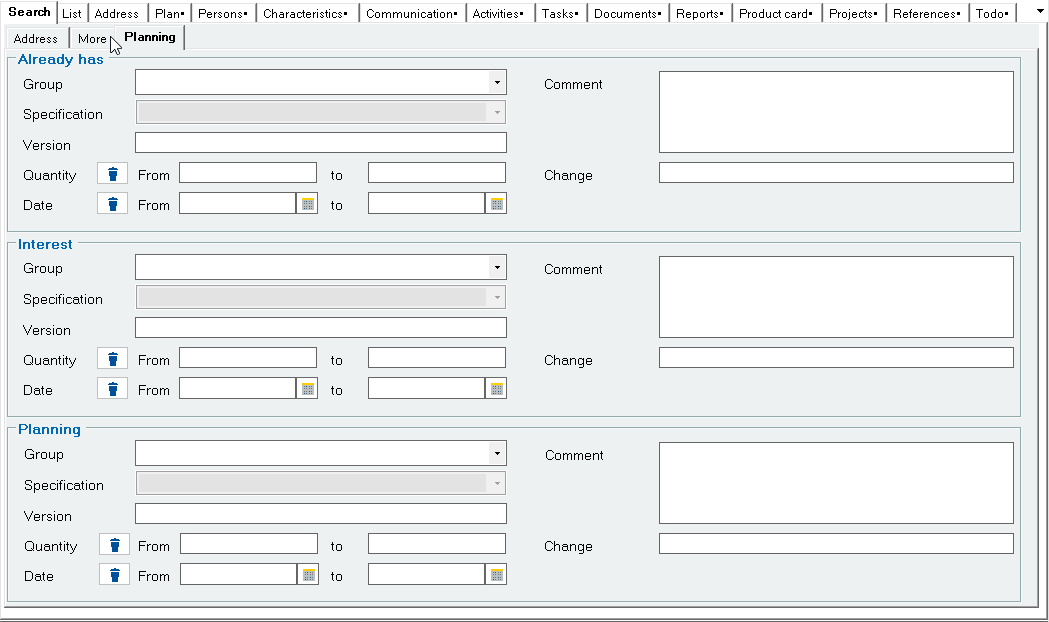
The search filter is displayed by selecting the Search tab. If desired, the background color of the search filter can be colored to better distinguish it from the entry dialogs. Any number of fields can be filled in for the search. The search is always carried out with wildcards at the end of the search strings. This means that if you want to search for all companies whose call name begins with A, you only need to enter an A in the Call name field and start the search. This is done by clicking on the search symbol1 in the top toolbar or by pressing “Enter” on the keyboard. A special feature of the address search is the search for the sound of the call name or the company. This search uses an internal database command that is able to compare similar-sounding texts with each other. With this type of search, even a database that otherwise distinguishes between upper and lower case is able to find names that differ in upper and lower case.
After the search has been carried out, depending on the number of data records found, either a message is displayed (if no data record was found), the address is offered for editing (if exactly 1 data record was found), or the list of data records is displayed in the List tab. If more than the set maximum number of data records to be displayed was found, the navigation symbols are displayed at the end of the list:Addresses : Todo
The maximum number of data records to be displayed can be set in the System tab (default=100).

1Search symbol